Connect without the clutter
Use the same saved computer ID after restarts and updates on this Windows profile. The six-digit connection code still changes and stays hidden until you show it.
A LITTLE CLOSER. WHEREVER YOU ARE.
Help someone from across the room—or across the city. Share a screen, take control with permission, and send the file that gets things moving.
Insight · 2.4.3 preview · Unsigned · Two-computer desktop validation pending.
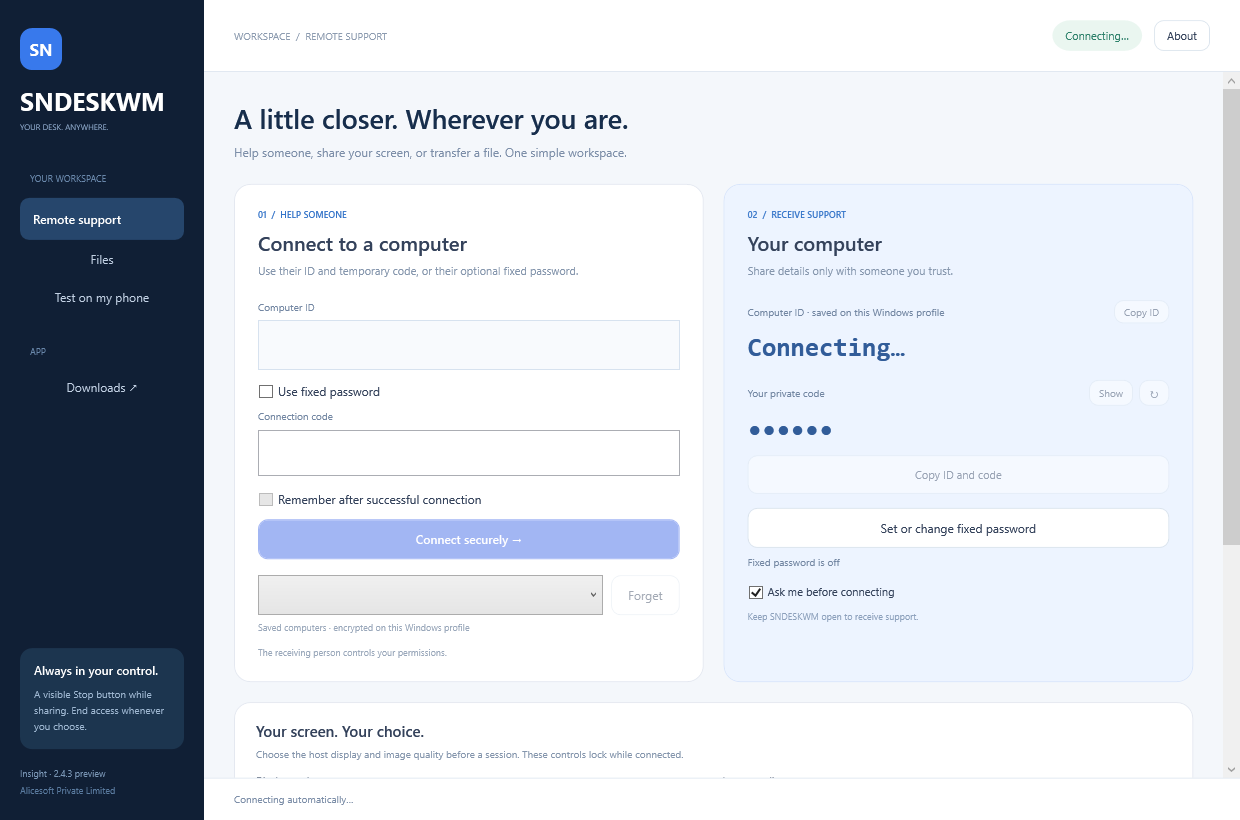
YOUR OWN WORKSPACE. BUILT IN C#.Source interface preview; not an active session.
SMALL DETAILS. LESS FRICTION.
A focused Windows workspace, with clear controls on both sides of a connection.
Use the same saved computer ID after restarts and updates on this Windows profile. The six-digit connection code still changes and stays hidden until you show it.
Select the host display before a session. Choose Save data, Balanced or Sharper text to suit the connection.
The host can allow control, view only, or decline. The main workspace minimizes after connection; a visible Stop sharing window remains. The remote view has full-screen and minimize controls.
Open Files to Send from My computer or Receive owner-selected files from Connected computer. Choose the receiving folder. Files above 50 MiB automatically use encrypted Azure storage, up to 10 GiB each; current relay pilot quotas still apply. Download verification precedes Azure deletion; uncollected files expire after 24 hours.
Choose an optional fixed password and remember a connection only after it succeeds. Saved passwords are encrypted for your Windows user, with a Forget option.
Use Ctrl+C to copy remote text and Ctrl+V to paste local text into the connected computer. Each transfer requires the other person’s approval; view-only sessions cannot use it.
Start Expo on the development computer, then share its tunnel link through an approved session. SNDESKWM generates a QR locally for your phone. Use Expo Go or your compatible development build.
TWO PEOPLE. ONE CLEAR NEXT STEP.
Use the matching app for each computer. Keep both apps open during support.
Ask the other person to share their current details privately.
The host chooses control, view only, or decline when approval is enabled.
SNDESKWM INSIGHT · 2.4.3
Detecting your computer…
Keep SNDESKWM in your Start menu and on your Desktop, with standard Windows uninstall.
Save it on your Desktop and open it. Useful for a quick support session or a test computer.
For M-series Macs running macOS 15 or later. Unzip and drag SNDESKWM into Applications.
For Intel Macs running macOS 15 or later. Unzip and drag SNDESKWM into Applications.
Apple Developer ID signing, notarization and real Mac testing remain pending. macOS may block the preview. Mac setup guide →
GOOD TO KNOW
New users start with “Ask me before connecting” enabled. The host can choose control, view only or decline. Existing saved approval preferences are retained. Disabling approval lets a person with the correct current ID and code connect automatically.
Screen and input data and accepted file transfers pass through encrypted sessions. The relay transports encrypted payloads. Diagnostics are saved locally only when requested. This custom protocol has not received an independent security audit.
The host selects a display before connecting. Display and quality selection lock during a session. End the session before changing them.
This is the original C# app. Earlier 1.x releases used a separate RustDesk-based engine. The legacy source and legacy licence remain available separately; they are not included in this app.